Idle Time Field · Connect IQ data field
How long did you stop?
Idle Time Field is a free Connect IQ data field. It shows how much of a ride you spend stopped, and when and for how long you stopped: lights, cafés, a puncture, a control.
Idle time = elapsed time − timer time. That's all the time your activity timer was paused or stopped: auto-pause at lights, café stops, manual stops. It matches Garmin's own numbers.
It's a data field: it goes into a slot on one of your data screens, like any built-in field. What it shows depends on how big that slot is.
What it shows
Small fields: one page at a time
On an Edge, tap the field to go to the next page. Each tap plays the device's key click, if key tones are on in your system settings.
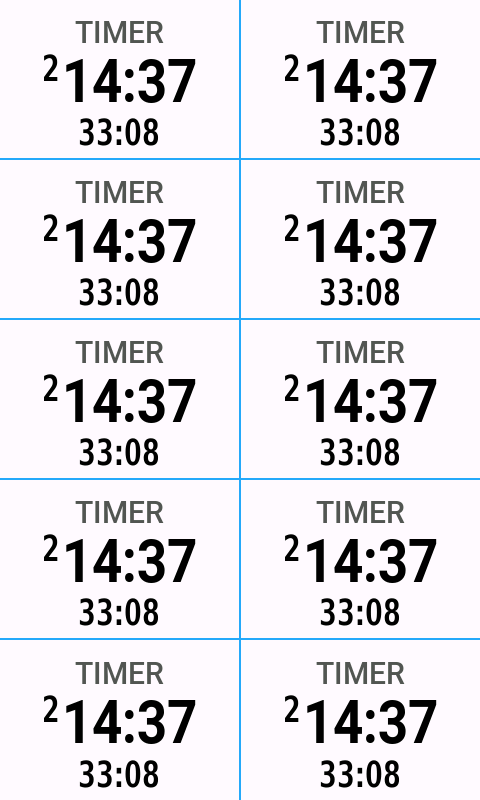
- Time: the activity timer (
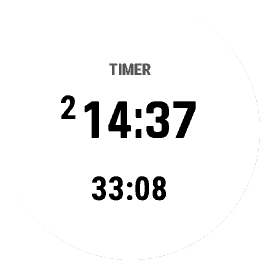
TIMER) with your total idle time below it. While you're paused, the big number becomes the current stop, counting up (PAUSE). - Last stop: how long your most recent finished stop was (
LAST STOP). - Speed:
AVG SPDis distance ÷ moving time, the usual average speed.AVG ELAPSEDis distance ÷ elapsed time: your real average, stops included. Units follow your device setting (km/h or mph).
Medium fields: everything at once
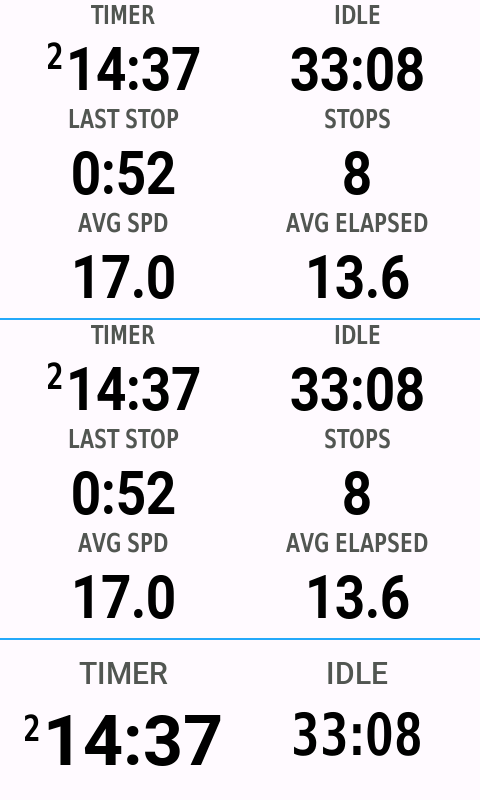
Three rows, no tapping needed: Timer | Idle, Last stop | Stops (how many), Avg spd | Avg elapsed.
Large fields: summary and your stops
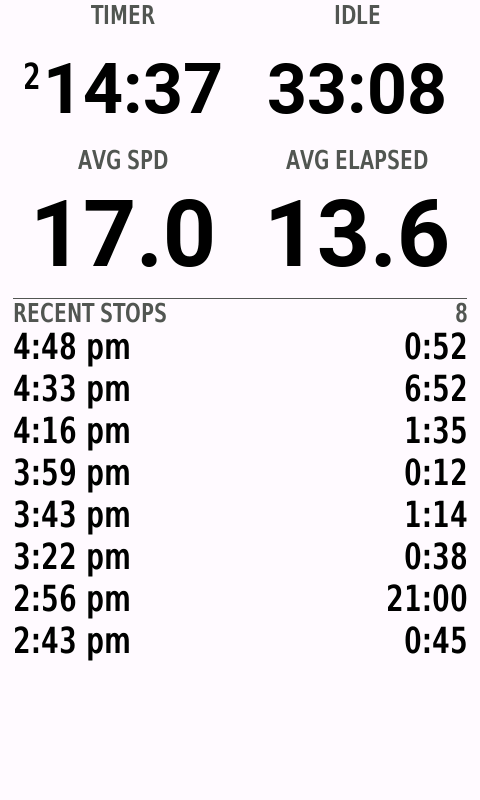
In a field of about half the Edge screen or the whole screen: Timer | Idle and both average speeds on top, then RECENT STOPS: when each stop started (12 or 24 hour, as your device is set) and how long it was, newest first. When the list doesn't fit, the last line reads "N earlier stops…".
Good to know
- Any ride length works, a 90-hour randonnée included. The screen keeps the most recent stops; the FIT file records every one.
- Under an hour, times show as m:ss (0:52, 4:05, 33:08). With hours, a small raised hour number comes before the minutes and seconds (²14:37), as in Garmin's own elapsed time field.
- If Connect IQ fields crash and reload mid-ride, or the device restarts and you resume the ride, the field gets back its stops for that ride.
- Taps work on Edge. Watches generally lock the touchscreen during an activity, so on a fēnix taps don't change pages: the field shows the layout for its size. A full-screen field on a fēnix shows the timer and idle time, not the three-row view.
Set it up
- Install Idle Time Field from the Connect IQ Store with the Connect IQ app on your phone.
- On the Edge, open your ride profile → Data Screens, choose a screen and a field.
- Pick Connect IQ → Idle Time Field.
A good pair: one small field on your main screen (tap through the pages), and one large field on a screen of its own for the stops list.
The setting
In the Connect IQ app on your phone: Idle Time Field → Settings.
Minimum stop length (seconds): 0 by default (every pause counts), from 0 to 600. Pauses shorter than this don't count as stops: they're not in the stop count, last stop, the list or the FIT stop fields. They still count as idle time, so idle time keeps matching Garmin. Use it to ignore the 1–3 second auto-pause blips.
The value used is saved in the ride's FIT file (min_stop), so you can compare rides recorded with
different settings fairly.
Settings can be changed only when the field is installed from the store; that's how Connect IQ works.
In Garmin Connect
After you sync a ride, Garmin Connect can show a Last Stop chart, plus Idle Time and Stops in the activity summary and Stops for each lap. To work with the numbers yourself, see the FIT data.
Works on
27 devices. The Edge is what it's made for.
Edge
- Edge 1040
- Edge 1050
- Edge 1060
- Edge Explore 2
- Edge Explore 3
- Edge Explore 3 Plus
fēnix 7
- fēnix 7, 7S, 7X
- fēnix 7 Pro, 7S Pro, 7X Pro (including the no-Wi-Fi Pro models)
fēnix 8 and fēnix E
- fēnix 8 43 mm, 47 mm
- fēnix 8 Pro 47 mm
- fēnix 8 Solar 47 mm, 51 mm
- fēnix E
fēnix 9
- fēnix 9 43 mm, 47 mm
- fēnix 9 Pro 43, 47, 51 mm
- fēnix 9 Pro Solar 47, 51 mm
Review your stops Coming soon
A page here to open a ride's FIT file and go through its stops: where, when and how long. Not built yet.