
How to open a GPX file on iPhone (and FIT, TCX, KML), even offline
The iPhone can save a GPX or FIT file but can't show it on a map. How to open route files from email, messages, Files or a zip, see the route, its climbs and its points, and keep it ready with no signal.
In this guide
The club sends Sunday’s route as a GPX attachment. An event’s organiser posts a zip of FIT files. A friend drops a KML into a group chat. You tap the file on your iPhone, and you get a plain icon, a page of text, or nothing at all.
What the iPhone does with route files on its own
Not much. The Files app keeps a GPX, FIT, TCX or KML file safe, but it can’t show it on a map: at best you see the file’s name, at worst a screen of XML. Apple Maps doesn’t open route files either. To see the route itself (where it goes, how far, how much climbing), you need an app that reads route files.
Most route apps can open one, usually by adding it to your account with them. If all you want is to look at the routes people send you and ride them, a viewer that keeps them on the phone is simpler.
Open a route file in Ridekit
Ridekit opens GPX, FIT, TCX, KML and KMZ files, and zips of them. It’s free, and it works with whatever the file came from: a planner, a club, an event, a friend.
From an email, a message or a download:
- Tap the file to open it (or touch and hold it in the chat).
- Tap the share button.
- Choose Ridekit. If it isn’t in the row of apps, swipe to the end and tap More.
That works from Mail, Messages, WhatsApp, Telegram, Safari’s downloads and most other apps.
From the Files app or iCloud Drive: in Ridekit, tap + → Import route files… and pick one or several. Dropbox and Google Drive appear in the same picker once their apps are on the phone.
A zip of routes: open it the same way. Ridekit unpacks it, and when there are several routes, they go into a new collection named after the zip: a whole event or tour in one go. Up to 200 routes per zip.
From another Ridekit rider: with Share with a rider, the route comes by AirDrop with its stops and offline map, phone to phone. See share a route with your riding group.
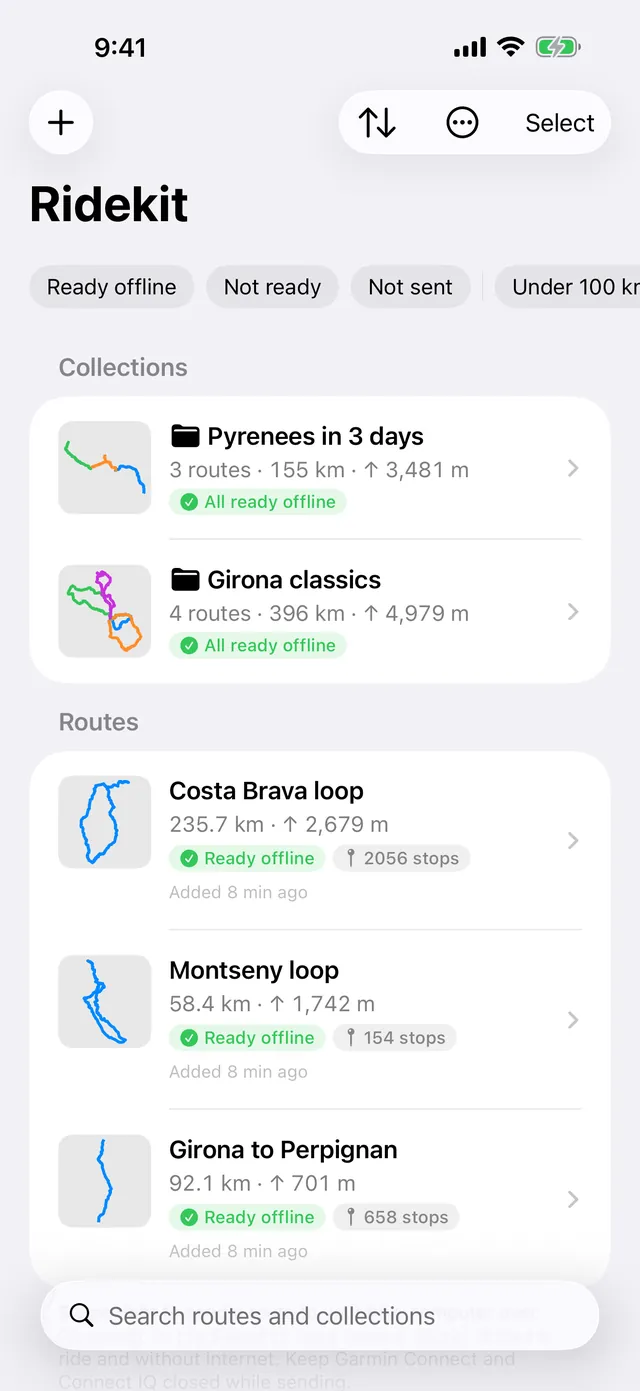
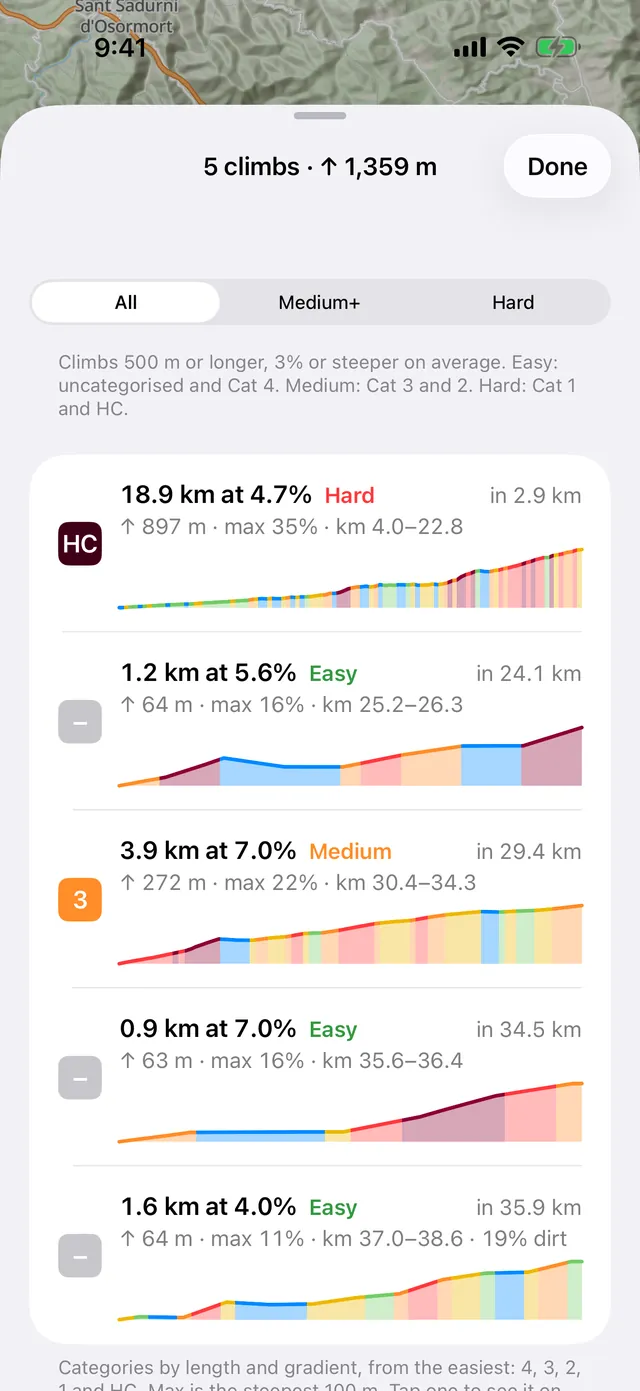
What you see
Open the route from the library:
- The route on the map, with its distance and climbing.
- The elevation profile, coloured by how steep it is, and every climb with its length, gradient and category. These come from the heights in the file. Some files, often KML, have no heights, and then there’s no profile. See how to read a climb profile.
- The points in the file: controls, cafés or warnings the planner or organiser put in, as red pins on the map.
- Water, food, road surface and places to stay along the way, which Ridekit adds from OpenStreetMap: the file doesn’t have them. See water and food along the way.
Ridekit recognises the same route from two places, even under another name, and asks before adding it twice. It compares the track, not the file name.
Even offline: get it ready while you have signal
Opening a file needs no internet: the route, its distance, the profile, the climbs and the file’s own points are read straight from the file, on the phone.
The map behind the line, and the stops and road surface along it, come from the internet. To have them with no signal, open the route while you’re online and tap Get ready. It downloads the map along the route, the stops, the surface and places to stay. After that the whole route works in airplane mode: on a train, in the hills, abroad without roaming. On the free plan, that’s every route up to 170 km. See riding abroad without roaming.
Then ride it
- Garmin Edge: open the route and tap Send to bike computer under Tools. It goes over Bluetooth with no internet, even mid-ride. See send a route to your Garmin Edge with no internet.
- Wahoo, Hammerhead, Bryton and others: Export for your bike computer… makes a FIT course or a GPX with stops for your bike computer’s app.
- Need it in another app? The route’s Share menu gives back the Original file, untouched.
Good to know
- Routes from Komoot, Strava and Ride with GPS: export the GPX, or connect your Ride with GPS or Strava account and pull routes in. See routes from Komoot, Ride with GPS or Strava.
- Your routes stay yours. No account: they’re kept on the phone and in your own iCloud, so they’re on your other iPhone too.
- A file Ridekit can’t read (a damaged file, or one with no track or route in it) is listed as Couldn’t read when you open it, and nothing else is affected.
- Keep the whole collection on the phone, and put only what you’re riding next on the bike computer: keep every route on your phone.